Seedream 5.5 for Transparent Product Images and Layers
Seedream 5.5 · Make product images at 1K, 1.5K or 2K. Create a transparent PNG for a product layout, edit with references, or split one source image into layers for compositing.
Add a reference to switch from text-only generation to reference editing.
Seedream 5.5 · Text to image
Use Seedream 5.5 to make an image from a written brief. Leave the reference area empty. Describe which object should draw attention, how it sits in the frame and how it is lit. For a placement with an existing layout, state where the image needs open space. The prompt can include the exact wording for a visible label.
Add at least one reference image to guide Seedream 5.5. Describe the change and the details you want to carry forward. Identify your references by description or order and give each a role. An existing image can guide the framing while a separate photo supplies color or visual context. Review the output as a new image.
Choose PNG for a transparent background and JPEG for a solid-background file. For existing artwork, switch to Split layers and upload one source image. Set the maximum number of outputs before submitting.
Compare how these examples handle framing, source material and the details you want to preserve in Seedream 5.5.
Seedream 5.5 · Direct the lighting and materials in a product shot
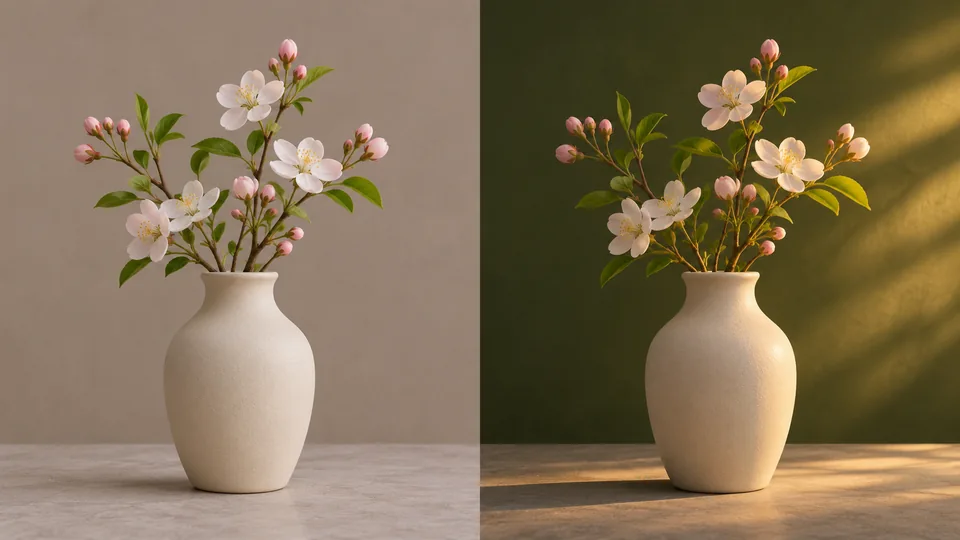
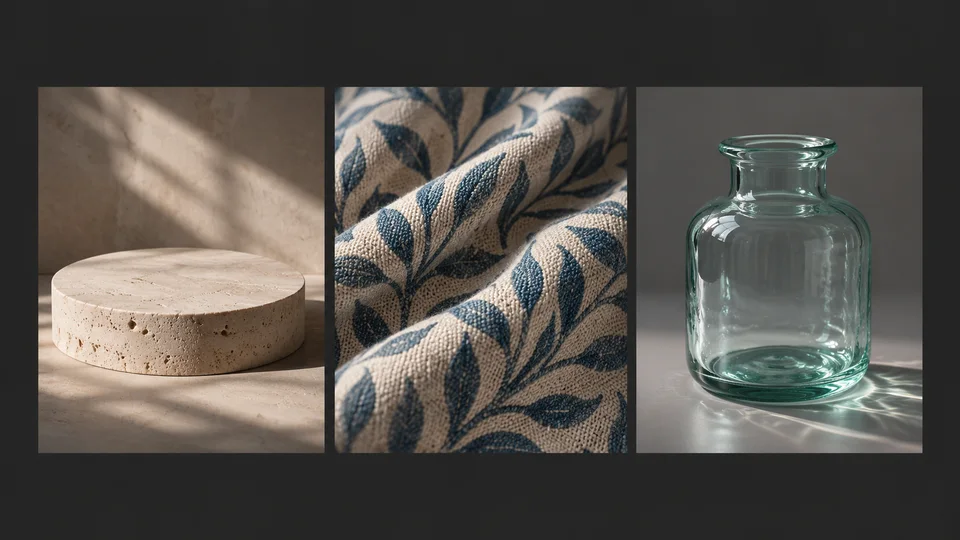
Create a still from text at 1K, 1.5K or 2K. Specify the light source and angle, then describe how the actual materials react to it, such as a soft highlight on glazed ceramic or scattered light through frosted glass.
Describe the main subject
Place it within the canvas
Review the crop in context
Seedream 5.5 · Refine the same image over successive edits
Upload an image or reuse a result as the next reference. Change one element at a time, such as the background color or the position of a small accessory, and identify what should stay fixed. Compare each result with the previous version before the next edit.
Put the original first
Give each other reference a purpose
List the details to keep
Seedream 5.5 · Guide a revision with up to 10 references
Add JPG, PNG or WebP files up to 10 MB each. Tell Seedream which image defines the subject and which supplies the lighting, crop or color palette. Put the most important visual constraint first.
Identify the main source
Separate visual roles in the brief
Inspect the changed region
Seedream 5.5 · Build layouts with captions and small type
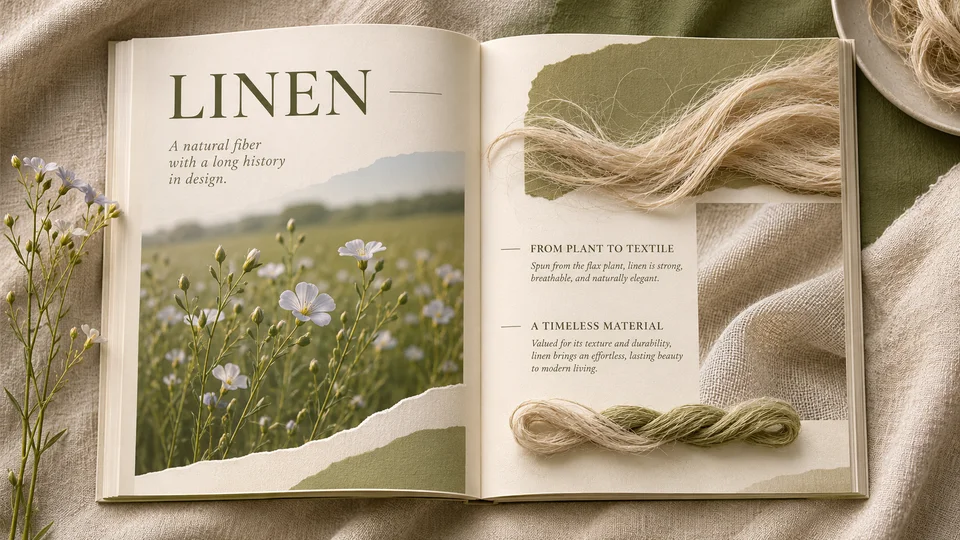
For an editorial spread or an infographic, supply the exact words and tell the model which captions go with which image. Choose 2K when reviewing smaller type and inspect numbers, symbols and line breaks before publishing.
State the intended format
Specify one decision per pass
Check important details yourself
Seedream 5.5 · Check the image at its final size
Choose an output format in Seedream 5.5 based on the next step in your design. Review the image at its intended size before downloading so you can check the edges, crop and letter spacing.
Check text at delivery size
Review edges before download
Choose a format for handoff
How to create images with Seedream 5.5
Follow the controls in the Seedream 5.5 workspace and check your credit quote before submission.
01
Choose the Seedream 5.5 input
Open the workspace. For a text-only image, leave references empty. For an edit, open the reference image field and place the most relevant source first. JPEG, PNG and WebP are accepted, up to 10 images and 10 MB each. Use source material you have permission to use.
02
Write the Seedream 5.5 prompt
Text prompt example 「Ceramic cup on pale stone, window light from the left, visible glaze texture and open space at the top for a headline.」 Reference edit example 「Keep the ceramic cup, rim, handle and pale tabletop. Warm the light entering from the left, and preserve the contact shadow under the cup.」 Choose the output size and aspect ratio for the placement. You can prepare the prompt while signed out.
03
Review and download the Seedream 5.5 result
Sign in and check the credit total, then choose Generate. In Results, review the image before downloading it. To continue editing an eligible image, choose Use as Reference. Write the request for the next pass after looking at the previous result so you can identify what moved or changed.
Apply the same crop and light direction to each product. Check reflective finishes separately from fabric.
02
Rework an editorial illustration
Leave room for a headline and set the image into the layout after each crop.
03
Explore packaging colors
Start from the same photo and vary the accent color. Verify the label and silhouette across variants.
04
Plan a material close-up
Request a view that shows the stitch or glaze. Check the texture at the final column width.
Seedream 5.5 FAQ
When is Seedream 5.5 a good choice?
Choose Seedream 5.5 if you want to judge a single still image before requesting the next revision. Start with the product photo. Ask for a specific lighting or background change, and identify which product features need to remain visible.
What sizes and ratios does Seedream 5.5 offer?
Choose 1K / 1.5K / 2K and one of 1:1 · 4:3 · 3:4 · 16:9 · 9:16 · 2:3 · 3:2 · 21:9. Match the placement before generating to avoid cutting off small text or a product edge.
Which files can I upload to Seedream 5.5?
Seedream 5.5 accepts up to 10 JPEG, PNG or WebP reference images of up to 10 MB each. The prompt limit is 5,000 characters. Prefer references that each communicate a distinct detail. Add fewer images if two files give conflicting direction for the same subject or angle.
Seedream 5.5 · Split an image into layers
A split task returns a base image and the layers that were separated. The quote reserves for your chosen limit. On success you pay for the files actually returned and the source reference.
Can I try a different camera angle?
Use a reference to show the shape and specify the new viewpoint. Check newly visible details against the real item.
Will Seedream 5.5 preserve a logo exactly after several edits?
Check the logo after every pass. Use the last good version as your reference and request one change at a time. Keep the original logo asset for final placement if exact shapes or lettering matter.
How are credits calculated for Seedream 5.5?
Seedream 5.5 shows the credit total before submission. The reservation is released once a failure is confirmed. Reference images contribute an additional amount per input.
How do I continue editing a Seedream 5.5 result?
On an eligible result, choose Use as Reference. Tell Seedream 5.5 what to change. If a previous image preserved a detail that the latest run lost, use that version instead.
How many files does one Seedream 5.5 run return?
Ordinary generation or reference editing returns one still. Run separate tasks to compare different framings or palettes.