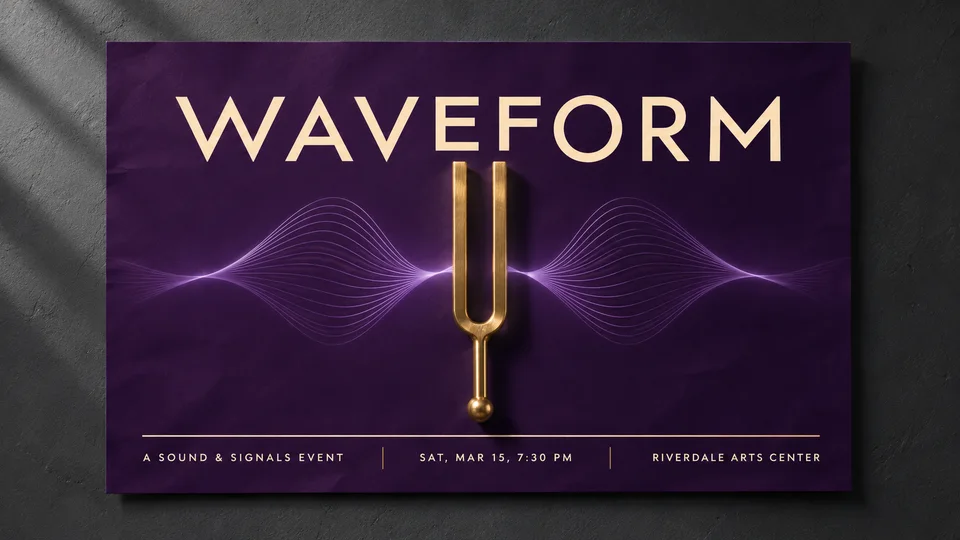
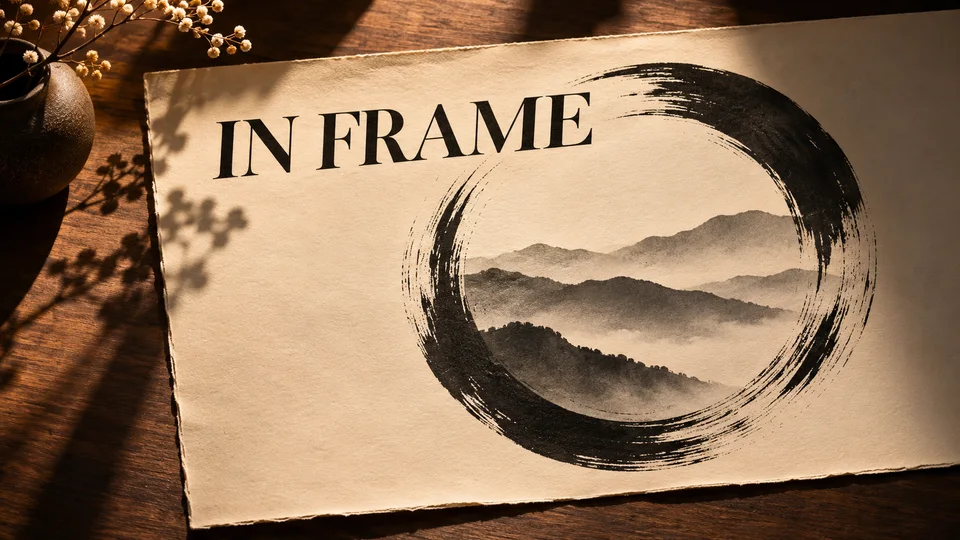
Create poster layouts, product mockups and social graphics with GPT Image 2.6. Start with a prompt or bring your own images to revise the composition, lighting and background. Export a transparent PNG to place the finished subject in your design.
Add a reference to switch from text-only generation to reference editing.
GPT Image 2.6 · Text to image
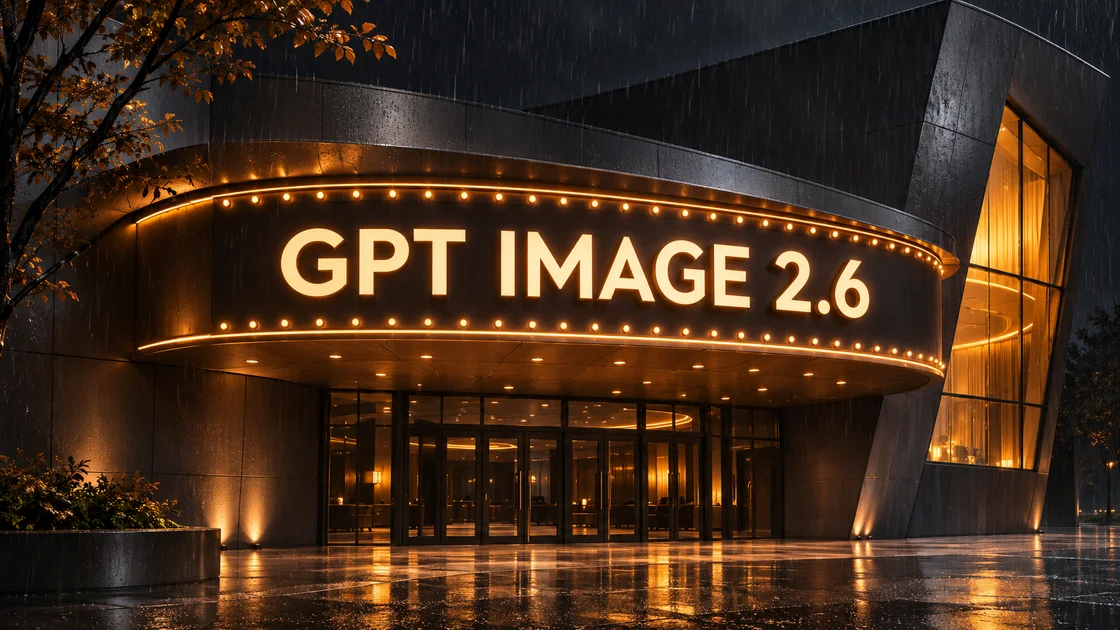
Use GPT Image 2.6 to make an image from a written brief. Leave the reference area empty. Describe which object should draw attention, how it sits in the frame and how it is lit. For a placement with an existing layout, state where the image needs open space. The prompt can include the exact wording for a visible label.
Add at least one reference image to guide GPT Image 2.6. Describe the change and the details you want to carry forward. Identify your references by description or order and give each a role. An existing image can guide the framing while a separate photo supplies color or visual context. Review the output as a new image.
Compare how these examples handle framing, source material and the details you want to preserve in GPT Image 2.6.
GPT Image 2.6 · Draft a 1K poster or campaign visual
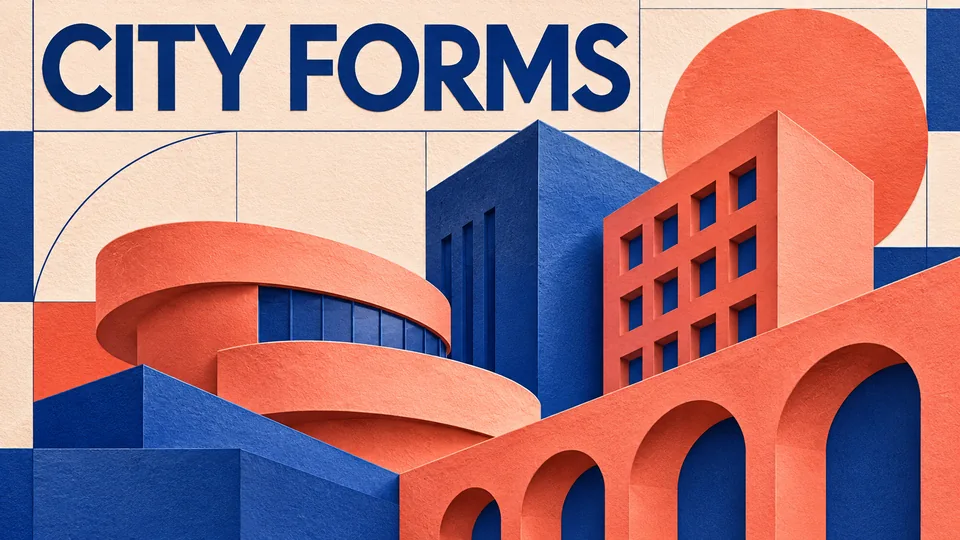
Build a layout from text with a defined focal point, an exact headline and room for a footer. Set the intended crop up front, such as 1:1 for a social tile, 9:16 for a story or 16:9 for a campaign banner.
Describe the main subject
Place it within the canvas
Review the crop in context
GPT Image 2.6 · Use up to 16 references to direct an edit
Add JPG, PNG or WebP files up to 30 MB each. Identify what each group of images contributes. A product photo can define shape, a second image can set the composition, and a third can guide the palette.
Put the original first
Give each other reference a purpose
List the details to keep
GPT Image 2.6 · Revise the background while keeping the brief intact
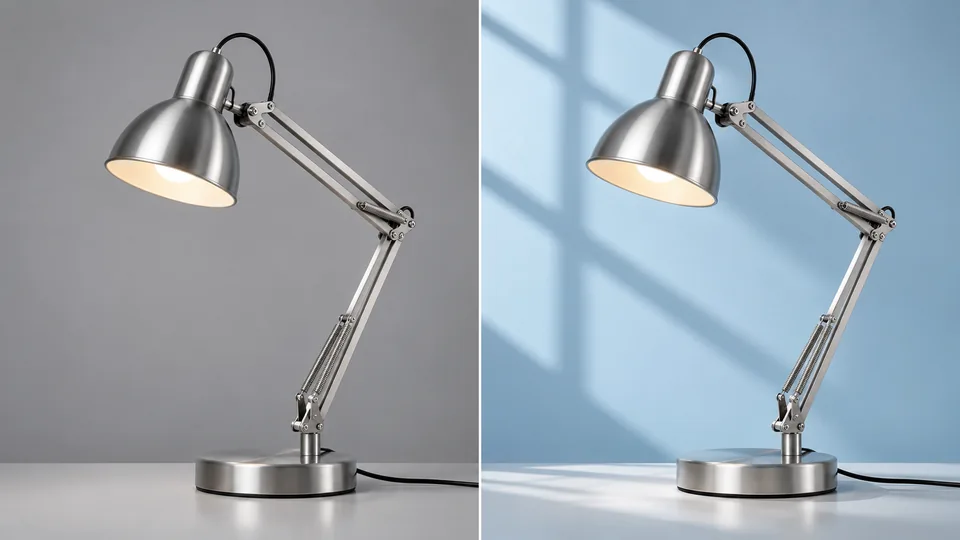
Bring the preferred draft back as a reference and request a specific revision, such as moving the background from a daylight studio to a dark stage. Describe the placement, camera angle and key objects you want to carry into the next version.
Identify the main source
Separate visual roles in the brief
Inspect the changed region
GPT Image 2.6 · Review one 1K PNG per run
Economy returns one 1K PNG per generation. Use that canvas to compare headline hierarchy, product placement and crops before you commit to a design. Eight canvas choices include Auto and 21:9.
State the intended format
Specify one decision per pass
Check important details yourself
GPT Image 2.6 · Check the image at its final size
Choose an output format in GPT Image 2.6 based on the next step in your design. Review the image at its intended size before downloading so you can check the edges, crop and letter spacing.
Check text at delivery size
Review edges before download
Choose a format for handoff
How to create images with GPT Image 2.6
Follow the controls in the GPT Image 2.6 workspace and check your credit quote before submission.
01
Choose the GPT Image 2.6 input
Open the workspace. For a text-only image, leave references empty. For an edit, open the reference image field and place the most relevant source first. JPEG, PNG and WebP are accepted, up to 16 images and 30 MB each. Use source material you have permission to use.
02
Write the GPT Image 2.6 prompt
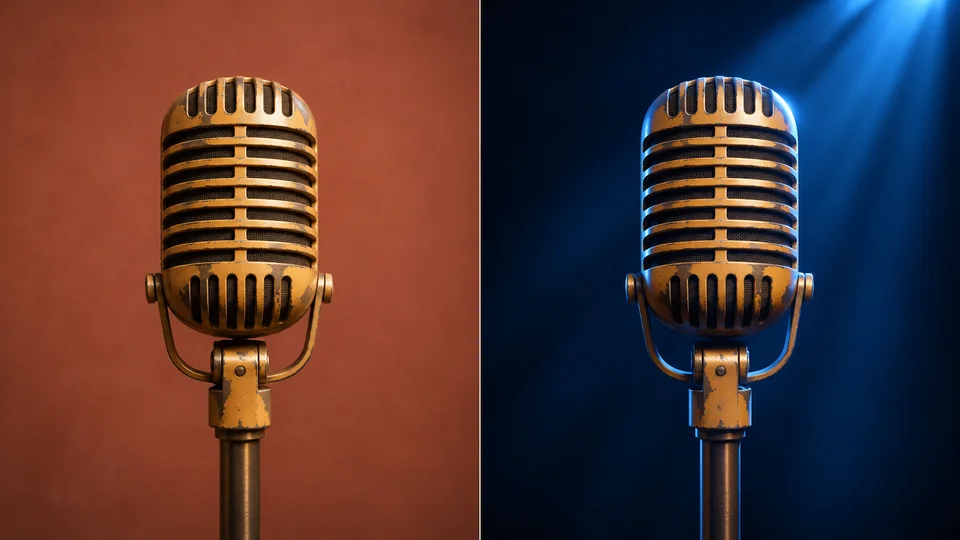
Text prompt example 「Square event poster with a burgundy backdrop, isolated brass microphone, short centered headline “LATE SET” and a blank footer for event details.」 Reference edit example 「Keep the microphone in the same position and scale. Replace the background with deep blue. Keep a short title at the top and leave the bottom clear for the date.」 Choose the output size and aspect ratio for the placement. You can prepare the prompt while signed out.
03
Review and download the GPT Image 2.6 result
Sign in and check the credit total, then choose Generate. In Results, review the image before downloading it. To continue editing an eligible image, choose Use as Reference. Write the request for the next pass after looking at the previous result so you can identify what moved or changed.
Leave space for the caption and confirm the subject stays legible at thumbnail size.
02
Plan a story graphic
In 9:16, put the title above the subject and keep graphics clear of the interface overlays.
03
Pitch a campaign visual
Prepare an image for the proposal deck before investing time in final retouching.
04
Explore venue poster layouts
Compare color directions from the same composition. Add the date and venue in the final layout.
GPT Image 2.6 FAQ
When is GPT Image 2.6 a good choice?
Choose GPT Image 2.6 if you want to judge a single still image before requesting the next revision. Use the 1K output for a screen-size concept before final production. Give each reference a role, such as subject, framing or color palette.
What sizes and ratios does GPT Image 2.6 offer?
Choose 1K and one of Auto · 1:1 · 16:9 · 9:16 · 3:2 · 2:3 · 21:9 · 4:3. Match the placement before generating to avoid cutting off small text or a product edge.
Which files can I upload to GPT Image 2.6?
GPT Image 2.6 accepts up to 16 JPEG, PNG or WebP reference images of up to 30 MB each. The prompt limit is 20,000 characters. Prefer references that each communicate a distinct detail. Add fewer images if two files give conflicting direction for the same subject or angle.
Which controls are available on this GPT Image 2.6 page?
The Economy version of GPT Image 2.6 creates 1K stills with an optional transparent PNG background. The GIF option and the Flare and Sunburst versions require a confirmed credit quote before submission.
Can I prepare several crops of one campaign?
Submit each ratio separately. Supply the accepted draft as a reference and describe which elements to move.
Can Economy export a scalable logo or editable type?
The workspace exports one raster PNG at 1K. Use it to explore layout and lettering. Build the production logo or editable type separately when it must scale or be changed later.
How are credits calculated for GPT Image 2.6?
GPT Image 2.6 shows the credit total before submission. The reservation is released once a failure is confirmed. The number of reference images does not add a separate per-reference charge for this workflow.
How do I continue editing a GPT Image 2.6 result?
On an eligible result, choose Use as Reference. Tell GPT Image 2.6 what to change. If a previous image preserved a detail that the latest run lost, use that version instead.
How many files does one GPT Image 2.6 run return?
Ordinary generation or reference editing returns one still. Run separate tasks to compare different framings or palettes.