Gemini Omni 1.1 Flash Text-to-Video
Describe the scene, the camera and the mood in up to 20,000 characters. Pick 4, 6, 8 or 10 seconds, 16:9 or 9:16, and 360p to 4K.
Open workspaceGemini Omni 1.1 Flash is Google’s multimodal model for AI video generation and editing. It gives you more creative control with 10 seconds of context for scene extension, first and last frame control, fast 360p drafts, video references and output up to 4K. Make 4–10 second videos in 16:9 or 9:16 from a prompt, from keyframes or from images and a short clip.
Text, keyframes or references to video · 360p–4K · 4–10 seconds · 16:9 or 9:16
Three workflows share the same lengths, aspect ratios and quality options. Start from words, from keyframes, or from images and a clip.
Describe the scene, the camera and the mood in up to 20,000 characters. Pick 4, 6, 8 or 10 seconds, 16:9 or 9:16, and 360p to 4K.
Open workspaceUpload a JPG or PNG first frame up to 20 MB and, if you like, a last frame. The model fills in the motion between them.
Open workspaceAdd up to 7 JPG or PNG images and one MP4 or MOV clip of up to 30 seconds and 100 MB to extend a scene or guide motion. The last 10 seconds of the clip are used, and a clip uses 2 of the 7 slots.
Open workspaceGemini Omni 1.1 Flash brings scene extension, video references, keyframe control, fast drafts, 4K output and cinematic camera direction to one model.
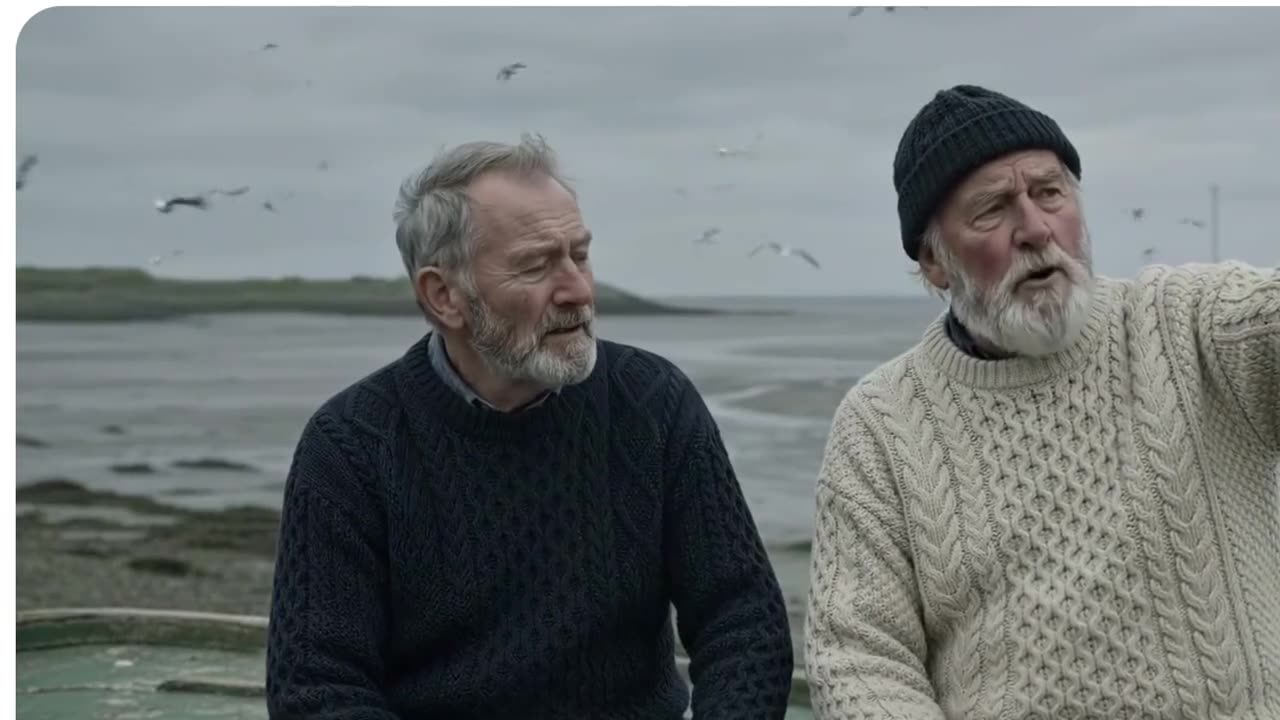
Continue existing footage while the story and visuals stay consistent. Gemini Omni 1.1 Flash reads up to 10 seconds of the previous clip, where earlier models looked only at the final second. Characters, places, motion and mood carry over into the new shot. Upload a clip of up to 30 seconds, describe what happens next, and Gemini Omni 1.1 Flash reads its last 10 seconds and picks up right where it ended.
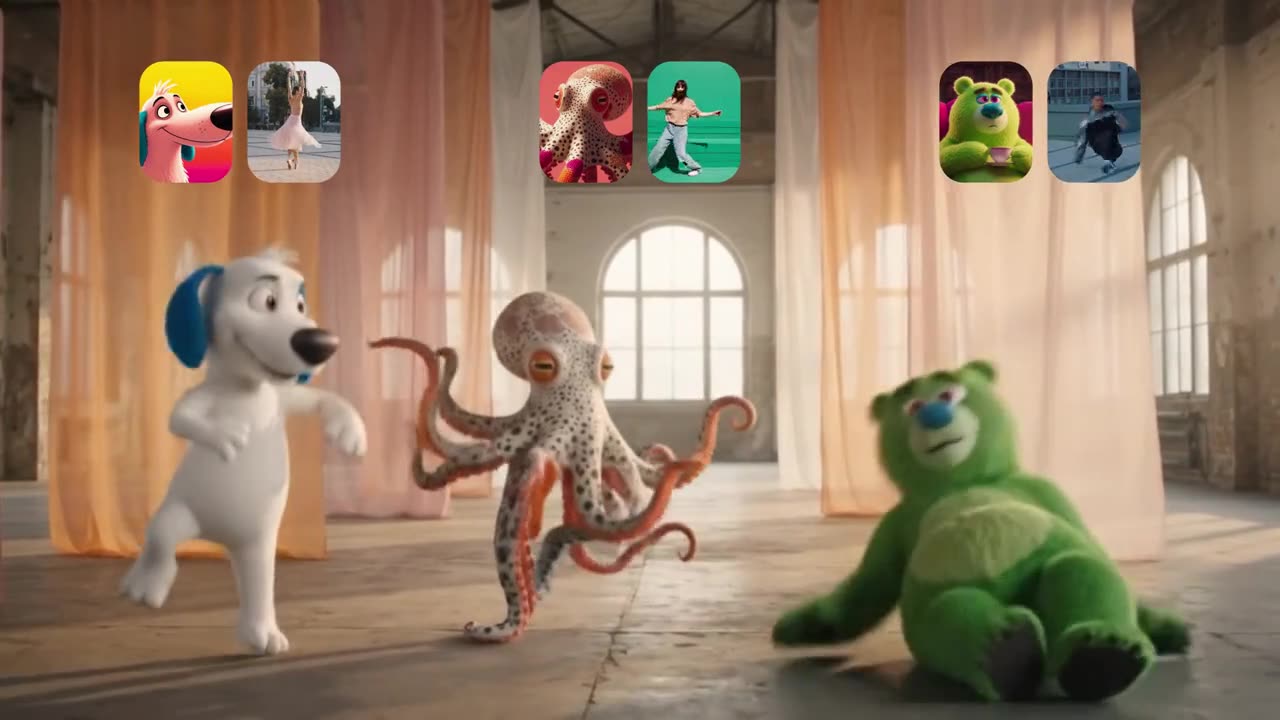
Give the model more visual context by combining a prompt, images and a video clip. Gemini Omni 1.1 Flash uses the clip to guide movement, characters and scene details, while reference images set faces, products and places. Up to 7 images and one video share 7 slots, and the video uses 2 of them. In Google’s demo, Gemini Omni 1.1 Flash makes three cartoon characters perform dances taken from three reference videos.
Define how a shot starts and ends, and let the model create the motion in between. Gemini Omni 1.1 Flash turns two keyframes into one continuous video, which suits camera orbits, zoom transitions and product reveals. Use the same image as first and last frame to make a seamless loop. The last frame is optional, so Gemini Omni 1.1 Flash can also animate from a single starting image.
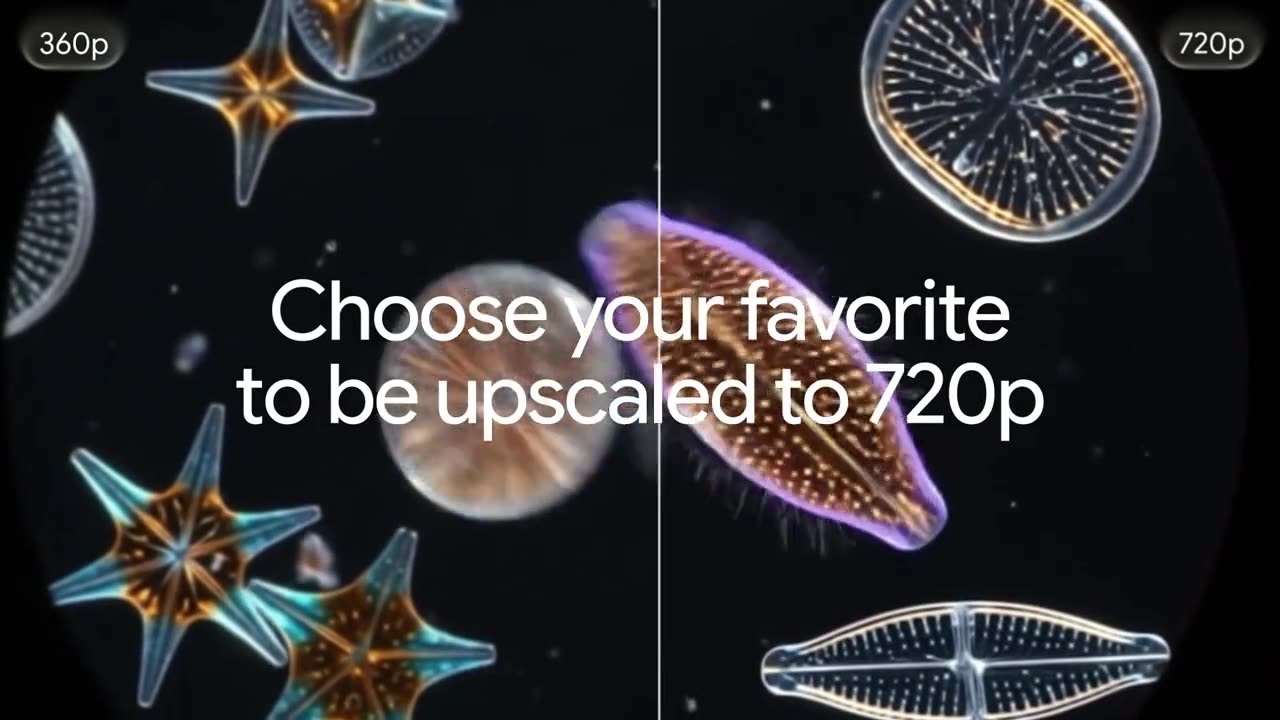
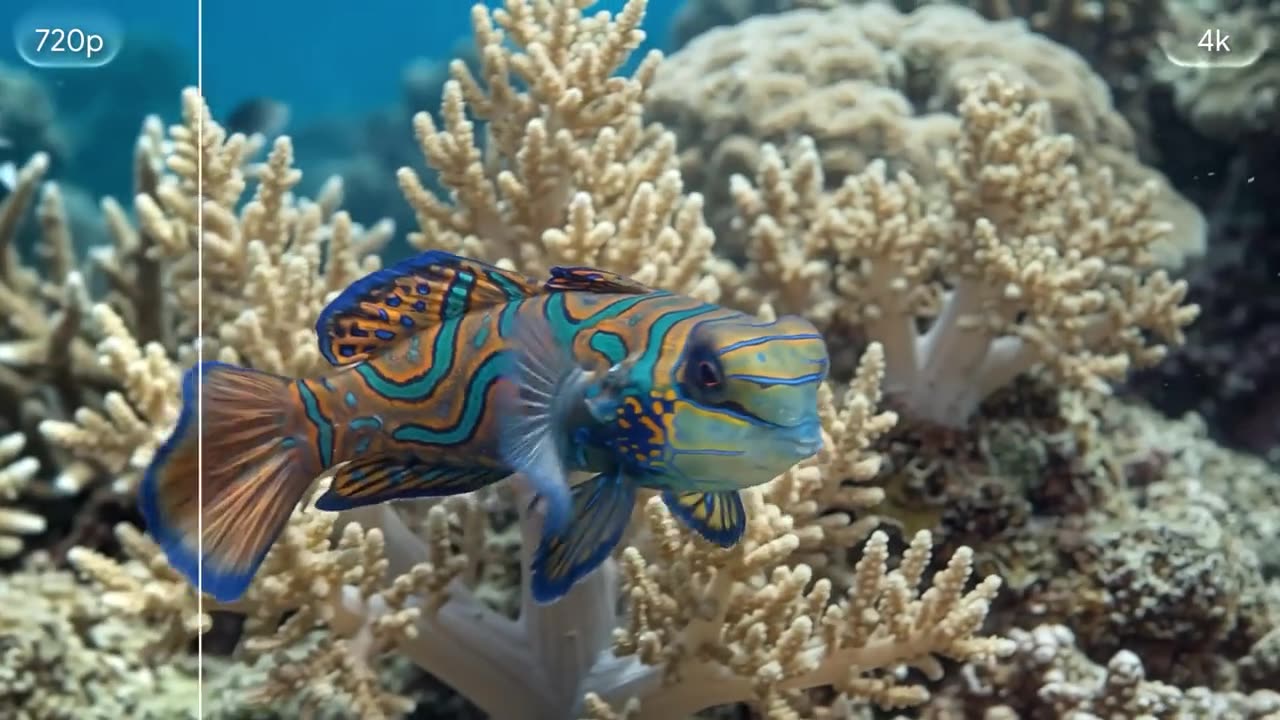
Test more ideas before you commit to a final render. Google says 360p drafts from Gemini Omni 1.1 Flash generate up to 60% faster than standard 720p video. Compare prompts, camera moves and scene ideas quickly, then render the best version at a higher quality. On this site 360p, 720p and 1080p cost the same credits, so choose 360p for speed and Gemini Omni 1.1 Flash keeps your idea intact.
Move from quick drafts to polished production assets in the same workflow. Gemini Omni 1.1 Flash renders at 1080p or 4K for sharper detail in faces, textures, leaves and water. That makes it practical for ads, product films, social campaigns and professional video projects. Every workflow offers 4K, from text prompts to first frames and references, so Gemini Omni 1.1 Flash can deliver the final cut in one place.
Create video with intentional camera movement and visual direction. Gemini Omni 1.1 Flash follows prompts for dolly zooms, snap zooms, push-ins, pull-backs and 360-degree orbits. Name the move, the speed and what stays in frame, and the shot reads like it was planned on set. Combine camera direction with scene extension or keyframes, and Gemini Omni 1.1 Flash gives you more ways to direct each shot.
Make a controlled video in Gemini Omni 1.1 Flash in three simple steps:
Sign in and open the Gemini Omni 1.1 Flash workspace. Write a prompt for text-to-video, upload a first frame and an optional last frame, or add up to 7 images and one clip of up to 30 seconds to extend a scene or guide motion.
Write the action, the camera move and the mood, and say which image or clip each part comes from. Choose 4, 6, 8 or 10 seconds, 16:9 or 9:16, and 360p for a fast draft or 1080p and 4K for the final. Check the credit estimate before you start.
Start the generation and Gemini Omni 1.1 Flash creates your clip. Preview it in your library, adjust the prompt, frames or references if needed, and download the finished video for ads, stories or social posts.
Gemini Omni 1.1 Flash adds production controls to the Gemini Omni line. Google lists 10 seconds of scene context instead of one, first and last frame control, 360p drafts, video references and output up to 4K.
| Capability | Gemini Omni 1.1 FlashUp to 4K | Gemini Omni Flash |
|---|---|---|
| Positioning | Production-ready video creation and editing | Multimodal video with real-world reasoning |
| Workflows here | Text, first and last frame, and reference to video | Not listed |
| Scene extension context | Up to 10 seconds of the previous clip | Final second only |
| First and last frame | Yes, last frame optional | Not available before 1.1 |
| Fast drafts | 360p, up to 60% faster than 720p | Not available before 1.1 |
| Maximum resolution | 4K | 4K not available before 1.1 |
| Quality options | 360p, 720p, 1080p, 4K | Not listed |
| Video references | One clip of up to 30 seconds; its last 10 seconds are used | Not available before 1.1 |
| Reference slots | 7 shared; a clip uses 2 | Not listed |
| Clip length | 4, 6, 8 or 10 seconds | Not listed |
| Camera direction | Dolly zoom, snap zoom, push-in, pull-back, 360° orbit | Not listed |
| Best for | Longer stories, transitions, ads and 4K finals | Short single generations |
Gemini Omni 1.1 Flash is Google’s multimodal model for AI video generation and editing. It supports scene extension, first and last frame control, video references, fast 360p drafts and high-resolution output up to 4K.
Yes. Gemini Omni 1.1 Flash offers 360p, 720p, 1080p and 4K in all three workflows. Many creators test an idea at 360p first, then render the chosen version at 1080p or 4K for the final cut.
Choose 4, 6, 8 or 10 seconds for text, frame and image-reference videos. When you add a video clip, Gemini Omni 1.1 Flash picks the output length itself, and the length setting does not apply. Google says scenes can be extended in 10-second steps.
Open the reference workflow, upload the clip you want to continue and describe what happens next. The clip can run 1–30 seconds, and Gemini Omni 1.1 Flash reads its last 10 seconds as context.
Yes. Gemini Omni 1.1 Flash generates continuous video between a first frame and an optional last frame. This is useful for smooth transitions, camera moves, product reveals and loops. In this mode reference images and clips are not used.
360p drafting is a faster way to test video ideas. Google says Gemini Omni 1.1 Flash makes 360p previews up to 60% faster than 720p. Here 360p uses the same credits as 720p and 1080p, so choose it when speed matters most.
Without a video clip, 360p, 720p and 1080p use 126, 168, 210 or 252 credits for 4, 6, 8 or 10 seconds, and 4K uses 294, 336, 378 or 420. With a video clip, a generation uses 336 credits up to 1080p or 504 credits in 4K.
Images can be JPG or PNG, up to 20 MB each. A video clip can be MP4 or MOV, 1–30 seconds long and up to 100 MB; its last 10 seconds are used. Images and the clip share 7 slots, and the clip uses 2. If a file does not fit, the upload box tells you why and what to change.
Gemini Omni 1.1 Flash makes 16:9 landscape or 9:16 vertical video in every workflow, so one idea can serve widescreen films and vertical social posts.
Describe the subject, the action, the camera move and the mood, for example: “Continue the video. The camera slowly pulls back to reveal a vast library.” Say which image or clip each character comes from. Prompts can be up to 20,000 characters.
Gemini Omni 1.1 Flash adds production-focused controls: 10 seconds of scene context instead of the final second, first and last frame control, 360p drafts, video references and output up to 4K.