
Kling Image 4.0 Standard images
Create 1–9 independent images in native 2K, 4K or 8K from text or a reference. Choose a fixed aspect ratio for a known placement, or Auto to explore the composition first.
Open workspaceKling Image 4.0 uses a Native Unified Understanding and Generation Architecture to handle subject details, lighting and composition in the same brief. Create native 2K, 4K or 8K stills, plan a sequence of up to 10 images, or turn a product or page brief into one long visual for review.
Standard 2K–8K · Series 2–10 images · Long layouts in 1K or 2K · Up to 10 reference items

Your images will appear here.
Start with the deliverable. A standalone image, a coordinated set and one long layout each have their own controls.
Create 1–9 independent images in native 2K, 4K or 8K from text or a reference. Choose a fixed aspect ratio for a known placement, or Auto to explore the composition first.
Open workspacePlan 2–10 related images from one brief. Describe the shared subject and light, then assign each image its own angle, action or crop. A product set can include a hero view, a side view and a close-up.
Open workspaceAdd 1–3 product photos and choose Short, Medium or Long. Put the hero, selling points and supporting details in reading order. Review the resulting 1K or 2K image with the merchandising team.
Open workspaceOutline the page from hero to call to action. Add a Style Image and a Subject Image if helpful. The result is one 1K or 2K visual draft to share with a designer.
Open workspaceChoose what to control in your brief, from the way light crosses a surface to the order in which a shopper reads a page.
Kling Image 4.0 handles lighting, material and placement together through its unified architecture. Specify where the light comes from and which surfaces reflect it. A brief that distinguishes matte leather from gloss-coated metal gives you details to inspect in a crop.

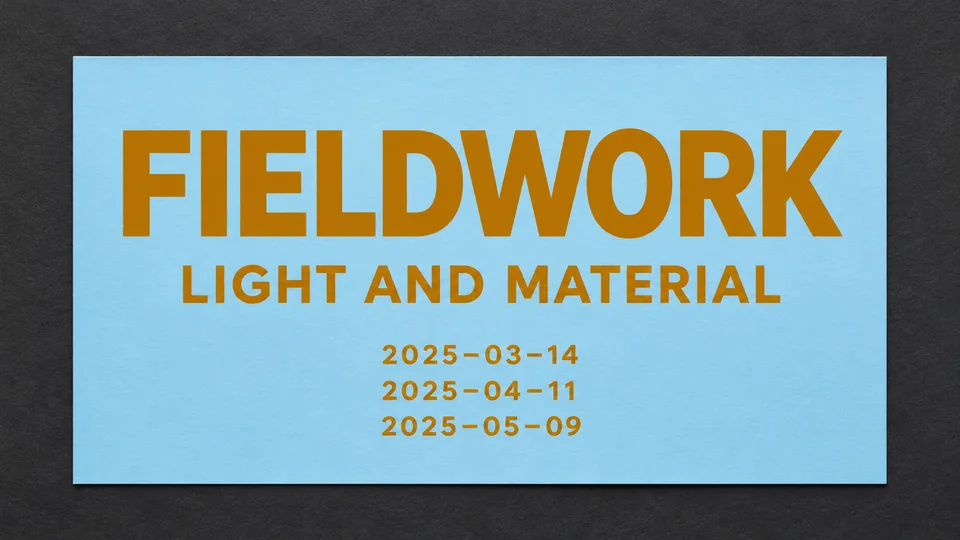
Give each line a role. The model supports up to 2,000 rendered characters in one image. Quote the exact wording and place the title, date and footer where they belong. Proofread the smallest text at the size people will see.
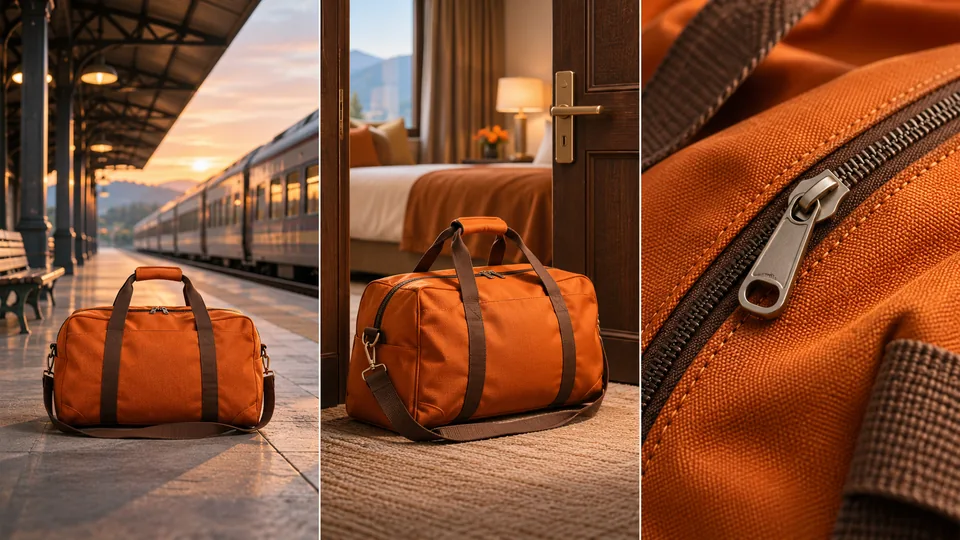
Describe the recurring character, palette and light before listing the views in order. Give each frame one purpose, such as setting the scene or introducing an action. Review neighboring frames together to check whether the cues carry through.
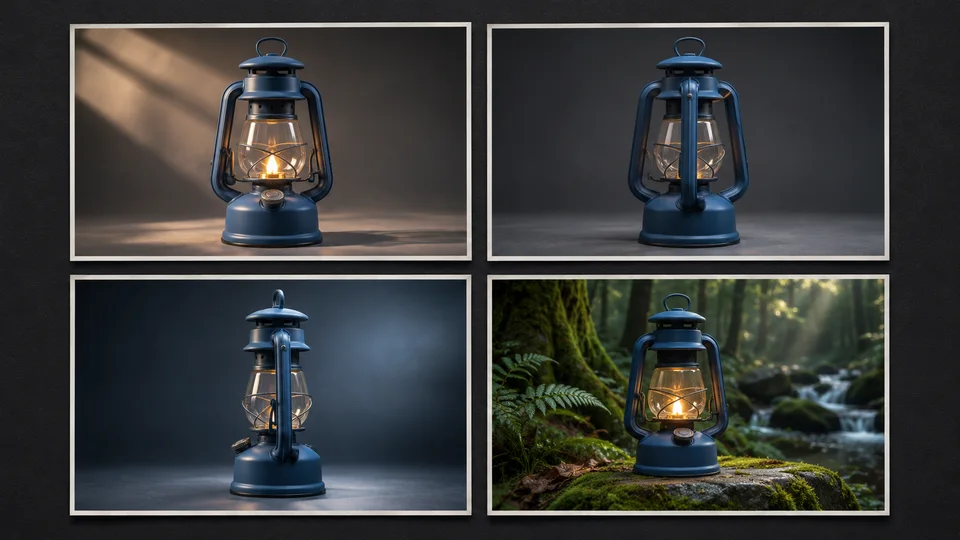
In Kling Image 4.0 Standard and Series, references and named subjects share a limit of 10 items. Build a subject from 2–4 views to show details a single photo leaves hidden. Give any separate background reference a distinct role. Give a named subject a tag or description when two subjects share a similar silhouette. The reference name still identifies it in the prompt.
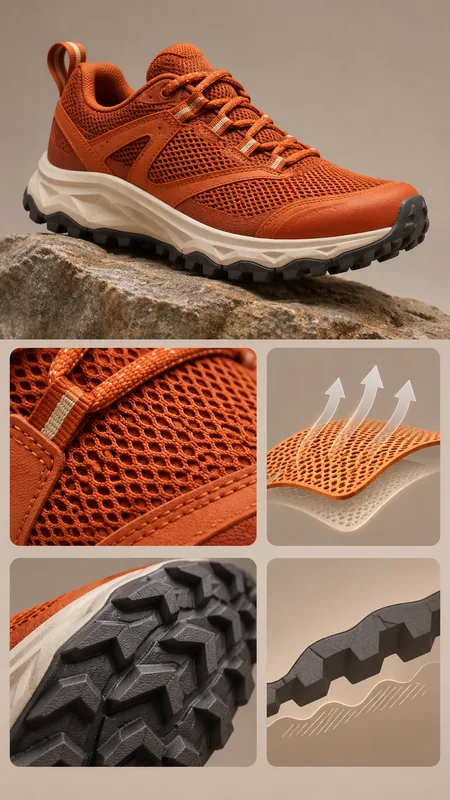
Give each section one job. Open a product page with an identifying image, then use a close-up to support a claim. For a webpage, describe where the title, hero and call to action sit. Review the result at phone width.
Prepare your visual inputs, set the output for its intended placement and review the quote before submitting.
Open Kling Image 4.0 with Start Creating and pick the mode for the intended output. Add JPG or PNG files up to 20 MB each. In Standard, Series or Product Detail Page, use @image_1 to refer to the first reference image. In Standard or Series, use @name for a named subject.
Tell Kling Image 4.0 what to keep and what to change. Example poster prompt: Put “Winter Studio Sale” at the top and “Saturday, 10 am” in the footer. Example series prompt: A charcoal travel bag in three views, front, side and zipper close-up, with the same window light. Set size, ratio or layout length as applicable.
Sign in and check the credit total with the selected Kling Image 4.0 settings. Select Generate, then review each image in Results and download the versions you want. For another pass, choose Use as Reference where the image meets the reference limits. Specify one change at a time so you can compare it with the previous result.
Compare the options available in this workspace. A dash indicates that the workspace does not offer that workflow. An unpublished capacity is left unspecified.
| Capability | Kling Image 4.0Native 8K and long layouts | Seedream 5.5 | GPT Image 2.6 | Qwen Image 3.0 Pro | Nano Banana 2.1 |
|---|---|---|---|---|---|
| Still image resolutions | 2K / 4K / 8K | 1K / 1.5K / 2K | 1K | 1K / 2K | 1K / 2K / 4K |
| Rendered text capacity | Up to 2,000 characters per image | Unspecified | Unspecified | Unspecified | Unspecified |
| Coordinated series | 2–10 | — | — | — | — |
| Long layout generation | Product detail / webpage, 1K or 2K | — | — | — | — |
| Max. reference items | Up to 10 reference images | 10 | 16 | 3 | 10 |
| Max. per reference | JPG / PNG · ≤ 20 MB | ≤ 10 MB | ≤ 30 MB | ≤ 10 MB | ≤ 30 MB |
| Max. prompt length | 20,000 | 5,000 | 20,000 | 5,000 | 20,000 |
| Aspect ratio | Auto · 1:1 · 16:9 · 9:16 · 4:3 · 3:4 · 3:2 · 2:3 · 21:9 | 1:1 · 4:3 · 3:4 · 16:9 · 9:16 · 2:3 · 3:2 · 21:9 | Auto · 1:1 · 16:9 · 9:16 · 3:2 · 2:3 · 21:9 · 4:3 | 1:1 · 3:2 · 2:3 · 4:3 · 3:4 · 16:9 · 9:16 · 21:9 | Auto · 1:1 · 2:3 · 3:2 · 1:4 · 4:1 · 3:4 · 4:3 · 4:5 · 5:4 · 1:8 · 8:1 · 9:16 · 16:9 · 21:9 |
| Typical use | Build a visual campaign from one brief | Refine product photography | Draft a composition at 1K | Plan layouts with visible text | Compose for very wide or tall spaces |
Plan several angles in the same light. Check the silhouette and label against your product record. Use selected images as inputs for a separate vertical layout explaining the features a main photo cannot show.
Set the order of headline, date and footer. Leave room around each block and proofread at the intended size. Keep the approved wording separately if you need exact typesetting for print.
Plan the hero, evidence and next step before choosing decorative details. Use the long visual to show design and engineering where each section belongs and the order in which it should be read.
Describe recurring clothing, objects and light. Give each frame one action or piece of information. Review the carousel in order and adjust the individual images where continuity breaks.
Kling Image 4.0 is Kling’s still-image model. Use text and visual references to create independent images or related sets.
Standard and Series offer 2K, 4K and 8K. Choose Auto or 1:1, 16:9, 9:16, 4:3, 3:4, 3:2, 2:3 or 21:9. Long layouts use 1K or 2K and a vertical canvas.
Use Kling Image 4.0 Series when order matters. Write a shared brief, then assign each picture its own framing or action.
Kling Image 4.0 Standard and Series allow up to 10 combined references. Add 2–4 views per named subject and cite it by name. For these references, use images with a width-to-height ratio of 2:5 to 5:2 and a longest side of at most 8,192 pixels.
Quote the text and give it a position. The model supports up to 2,000 rendered characters per image. Check spelling and contrast.
In Kling Image 4.0, Product Detail Page requires 1–3 photos. Webpage Layout can use text alone or optional style and subject images.
It produces a static image for design review. A working site still needs responsive sections, accessible controls, selectable text and links.
The Kling Image 4.0 quote uses the applicable resolution, count, product-page length and references. A confirmed failure releases the reserved credits.
Use an eligible result as a reference in Kling Image 4.0. Describe one change, such as softening the shadow while preserving the cup angle.