Kling ecosystemExplore native audio, multi-shot video and motion controlExplore Models
Kling 3.0 Motion Control

Kling 3.0 Motion Control: Character Motion Transfer

Use Kling 3.0 Motion Control to transfer movement from a reference video to a character image. Guide body movement and facial expression with 720p or 1080p output.

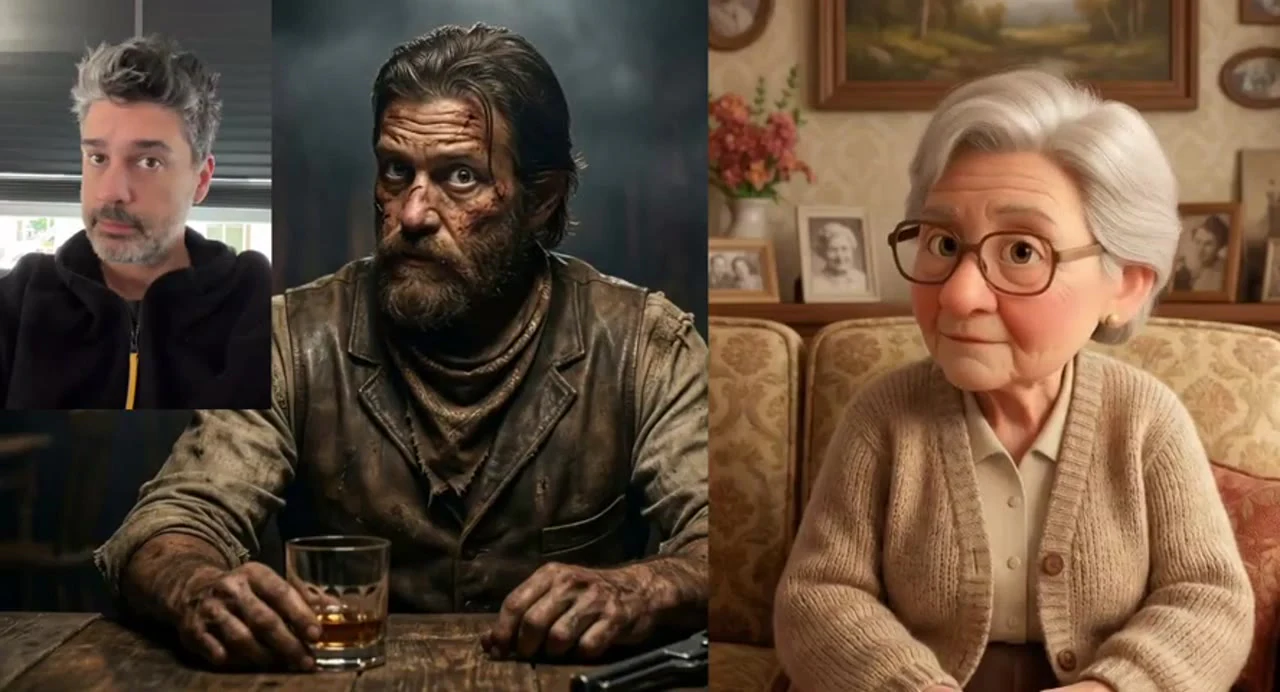
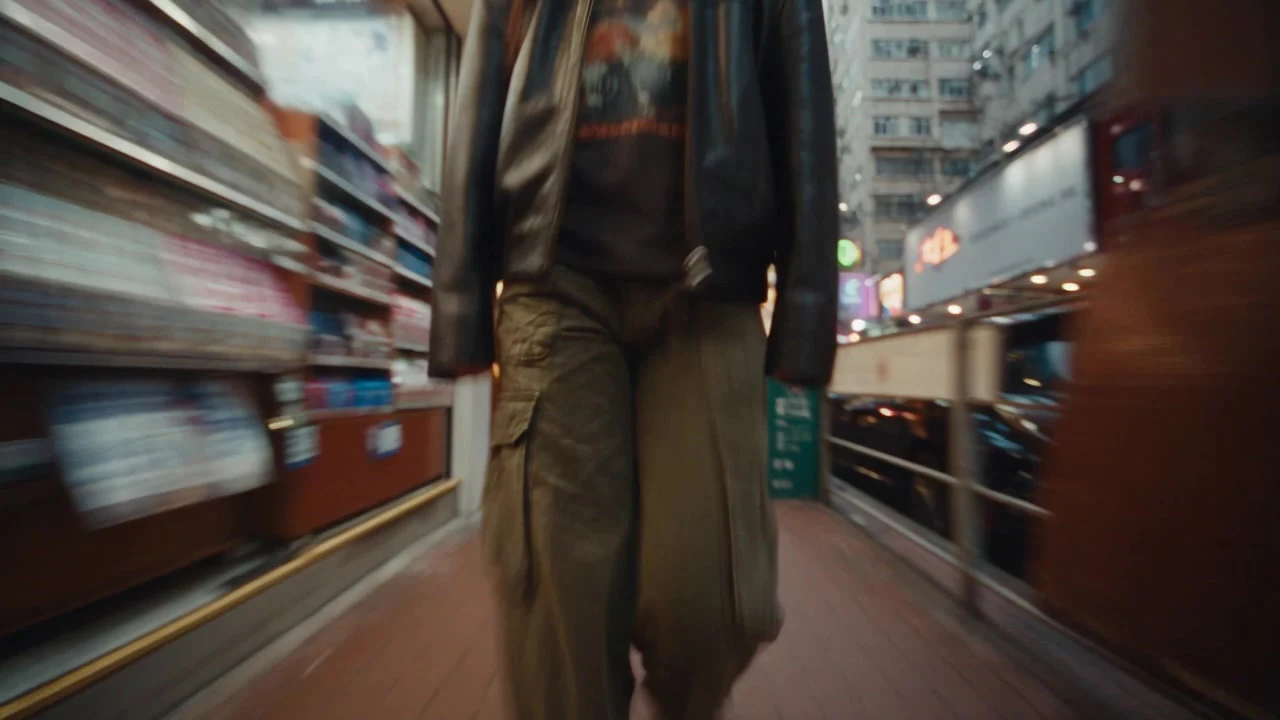
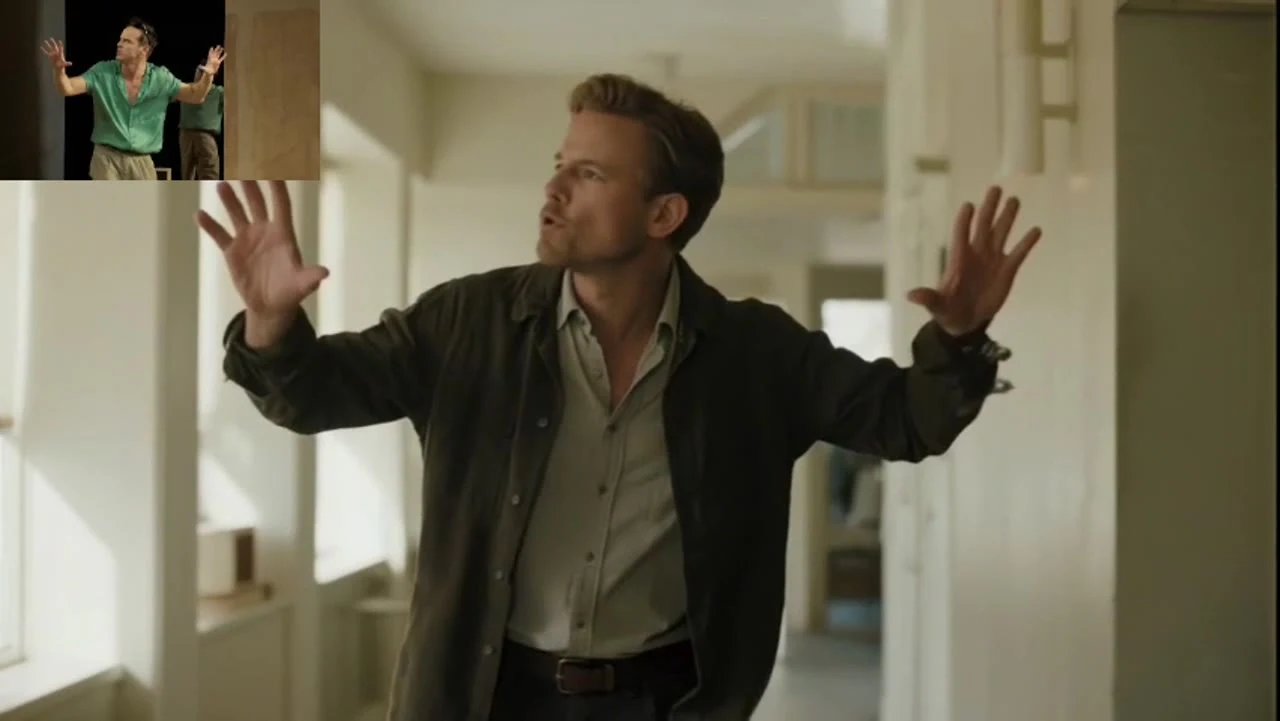
Images and videos illustrate creative directions.
Kling 3.0 Motion Control

Bring your idea into motion

Choose a tool

Kling video studio

Generation mode
0/1

JPG / PNG · up to 10 MB

0/1

MP4 / MOV · up to 100 MB

Prompt
0 / 2,500⌘ / Ctrl + Enter to create
Required credits:Estimating…
1 / 4

Your videos

Your next creation starts here

Your generated videos will appear here.

How Does Kling 3.0 Motion Control Improve on Kling 2.6?

Kling 3.0 Motion Control upgrades the Kling Video 2.6 motion-control capability, improving facial consistency and motion stability. Compared with 2.6, it focuses on preserving facial features through complex scenes, multiple camera angles and longer sequences for more dependable motion-driven video.

Kling 3.0 Motion Control

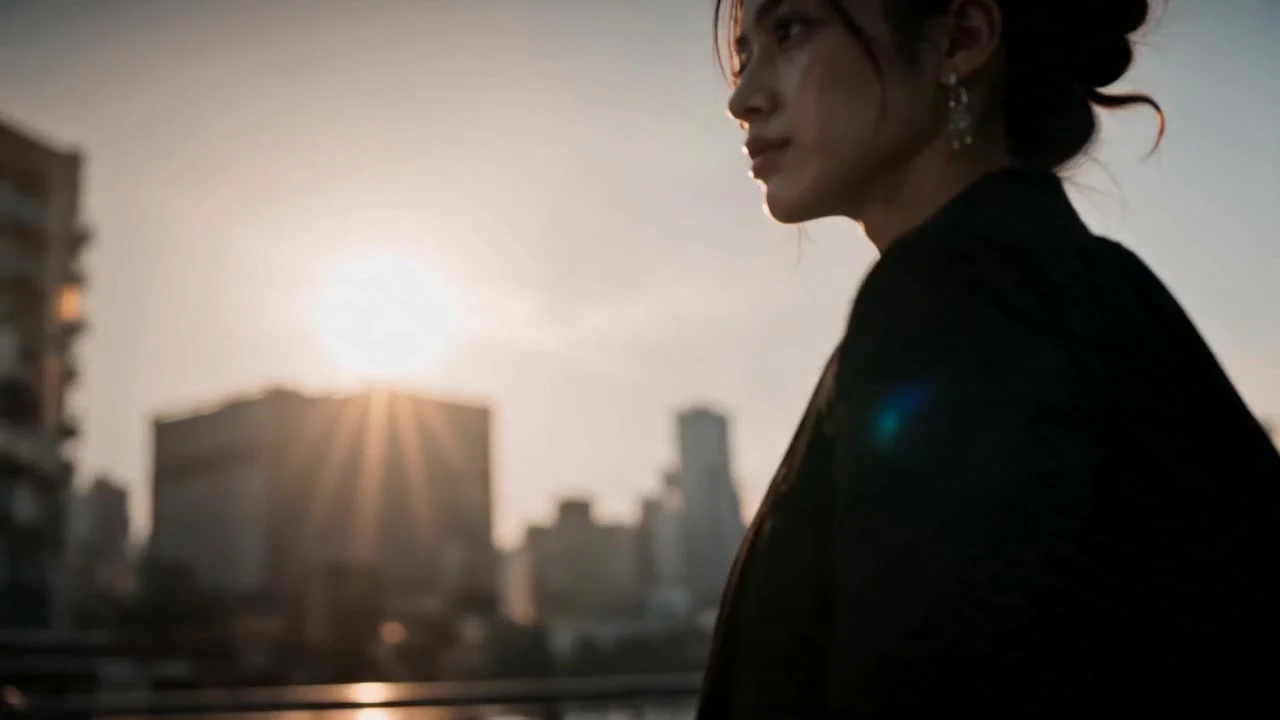
Kling 3.0 Motion Control helps preserve facial features through camera-angle changes and extended motion. Facial structure remains a focus during turns and large movements, supporting character-consistent video.

Open workspace
Kling 2.6 Motion Control

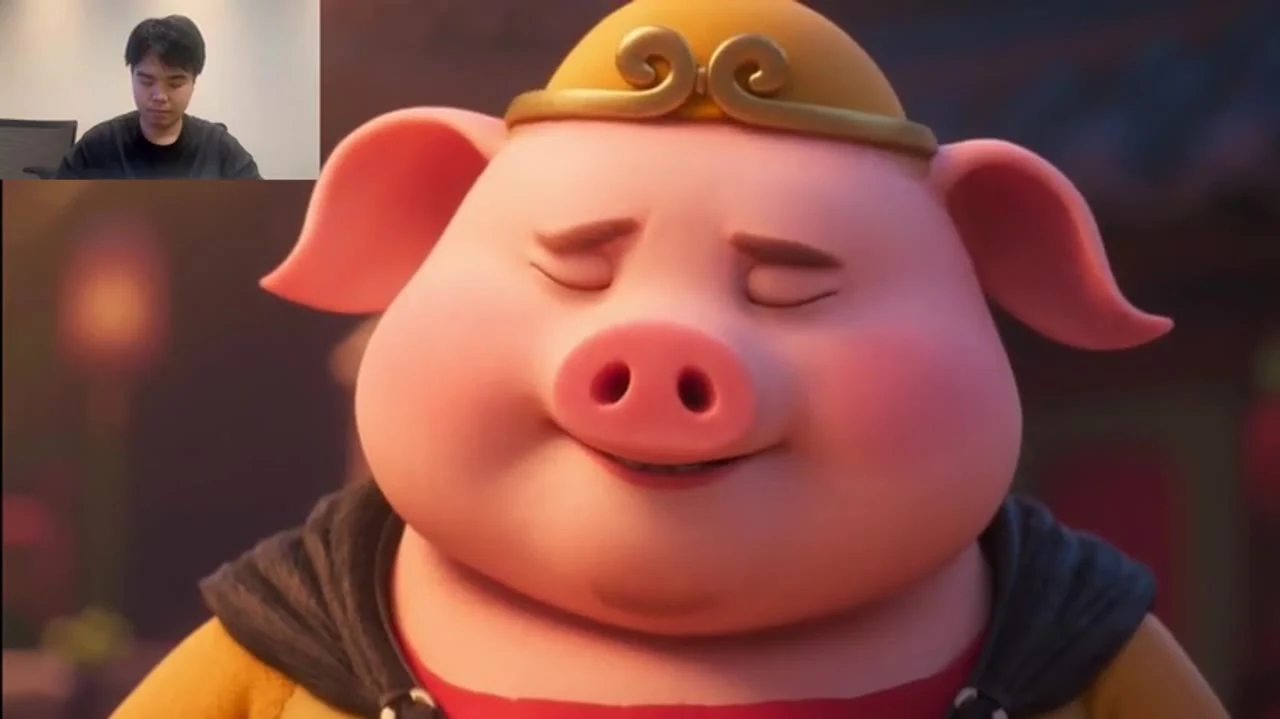
Kling 2.6 Motion Control transfers a real performance from one reference video to a character image, including body movement, gestures and expressions. Following video orientation supports 3–30 seconds; following image orientation supports up to 10 seconds.

Open workspace

Kling 3.0 Motion Control Core Features

Precise AI Motion Transfer

Kling 3.0 Motion Control: Facial Consistency Across Angles

Kling 3.0 Motion Control helps preserve facial features through camera-angle changes and extended motion. Facial structure remains a focus during turns and large movements, supporting character-consistent video.

Complex Emotions with Kling Motion Control 3.0

Kling Motion Control 3.0 captures subtle emotional changes such as smiles, surprise and sadness. These expressions accompany motion transfer for expressive character performances.

Facial Occlusion Recovery with Kling Video 3.0 Motion Control

Kling Video 3.0 Motion Control helps preserve facial structure through brief occlusions during movement or camera changes. Facial-detail recovery supports recognizable character identity.

Facial Clarity During Dynamic Camera Movement with Kling AI

Kling 3.0 Motion Control focuses on facial clarity as framing and dynamic movement change. This includes cinematic camera pushes, pulls, pans and shifts, where facial detail and recognizability remain a focus.

Kling 3.0 Motion Control Uses

1

Character Animation with Kling AI Motion Control

Use Kling AI Motion Control to animate illustrated characters, avatars, or mascots using real human motion. By combining a reference video with a character image, kling 3 motion control transfers natural body movement and gestures to create lifelike animated performances.

2

Social Media Videos with Kling 3 Motion Control

Creators can use kling 3 motion control to generate short-form videos by applying trending dances or gestures to AI characters. With Kling Motion Control 3.0, influencers and brands can quickly produce engaging content for TikTok, YouTube Shorts, and other platforms.

3

AI Marketing and Product Demonstration Videos with Kling Motion Control

Brands can use Kling Motion Control to generate marketing videos where virtual characters present products or perform brand gestures. Powered by kling ai, businesses can turn static visuals or mascots into dynamic promotional video content.

4

Film Previsualization with Kling 3.0 Motion Control

Filmmakers can use Kling VIDEO 3.0 Motion Control to prototype scenes and character performances before production. Using kling ai motion control, teams can test choreography, acting, and camera movement with consistent AI characters.

Frequently Asked Questions

How is Motion Control different from image to video?

Motion Control combines a character image with a separate video supplying motion. Image to video animates an image from a written description. Choose Motion Control when you have a specific performance you want to use as a guide.

What reference media do I need?

Provide one JPEG or PNG character image up to 10 MB and one MP4 or MOV motion clip up to 100 MB, lasting 3–30 seconds. Use dimensions greater than 340 px, aspect ratio 2:5–5:2, and clearly visible head, shoulders and torso.

What does character orientation control?

Choose Video to follow the orientation in the motion clip, or Image to follow the character image. Video is the default recommendation. This setting controls the orientation reference, while the motion clip still supplies the performance.

Can I choose the background source?

Yes. Kling 3.0 Motion Control can use the motion-video background or the character-image background. The default is the video background. Check this separately from character orientation.

Which output qualities are available?

Standard mode is 720p and Pro is 1080p. The submitted motion clip remains subject to its own format and size requirements; choosing Pro does not accept a larger reference file.

Do I have to write a prompt?

The prompt is optional and can be up to 2,500 characters. Use it to clarify the intended scene while the image and motion video remain required. A written instruction cannot replace either reference.

Can I reuse a video from My creations?

Choose a completed video as the motion reference if it meets the clip requirements. The character input still needs an image. The picker shows incompatible creations for preview and explains why they cannot be selected for an image input.

Start Creating with Kling 3.0 Motion Control

Use Kling 3.0 Motion Control to transfer movement from a reference video to a character image. Guide body movement and facial expression with 720p or 1080p output.

Open Motion Workspace
Explore all Kling models