
Kling AI Image to Video Generator
Upload an image to Kling 4 and bring it to life with a Kling model. Describe the motion and camera movement, adjust your settings, and try it today.
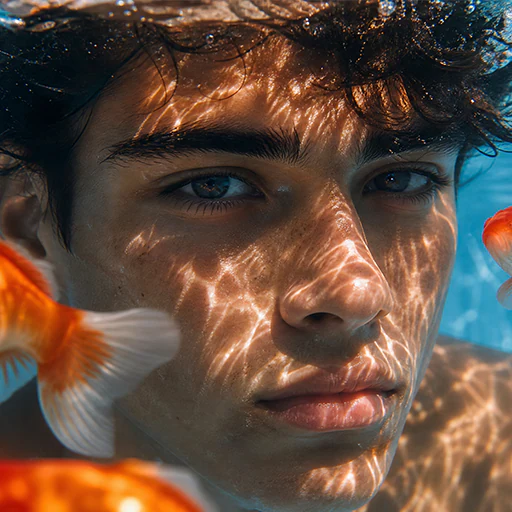
Kling 4 Image to Video
Your videos
Your next creation starts here
Your generated videos will appear here.
How to use Kling Image to Video
Create a video in three steps:
Choose a model and upload an image
Select an image-to-video model and upload a clear starting image. Add an end image when supported.
Describe motion and settings
Describe how the subject and camera should move, then choose the available aspect ratio, duration and resolution.
Generate and download
Sign in and review the credit quote before generating. View and download the video in your workspace, or refine the inputs and try again.
Kling Image to Video FAQ
Answers about inputs, output settings and your creative workflow.
What is Kling Image to Video?
Generate a moving scene from a starting image and a written motion prompt.
What are its main features?
Starting-image upload, motion prompts and model settings, with end frames and audio where supported.
How can I control the output?
Use a clear image and a focused motion description. An end image can guide the ending on supported models; visual continuity is not guaranteed.
What are common use cases?
Product displays, portrait animation, illustrated stories, travel clips and social content.
Why choose Kling Image to Video?
Prepare images, motion and output settings together, check the credit quote and manage completed videos in your workspace.